How to Use Ditto Web Dashboard
A comprehensive guide on how to set up and use Ditto Web Dashboard for server cloning.
How to Use Ditto Web Dashboard: Complete Guide to Discord Server Cloning
Ditto Web Dashboard makes Discord server cloning simple and efficient. This comprehensive guide will walk you through every step of using Ditto Web Dashboard to successfully clone your Discord servers, from initial setup to completion.
What You'll Need Before Starting
Before you begin cloning your Discord server, make sure you have:
- Owner permissions on both the source server (server you're cloning from) and target server (server you're cloning to)
- Administrator permissions for Ditto Bot on both servers
- A Top.gg account to vote for the bot (free and quick to set up)
Step-by-Step Guide to Using Ditto Web Dashboard
Step 1: Invite Ditto Bot to Both Servers
First, you need to invite Ditto Bot to both your source server and target server:
- Visit the Ditto Bot website and click "Add to Discord"
- Select your source server from the dropdown menu
- Make sure to grant Administrator permissions to Ditto Bot
- Click "Authorize" to add the bot to your server
- Repeat this process for your target server
Video: Inviting Ditto Bot with Administrator permissions
⚠️ Important: Administrator permissions are required for Ditto Bot to work properly. Without these permissions, the bot cannot clone channels, roles, or permissions correctly.
Step 2: Vote for Ditto Bot on Top.gg
To unlock the cloning features, you need to vote for Ditto Bot on Top.gg:
- Visit
top.ggand search for "Ditto Bot" - Click on the Ditto Bot page
- Click the "Vote" button (you may need to log in with Discord)
- Complete the voting process
- Wait 10-15 seconds for the vote to be registered in our system
Video: Voting for Ditto Bot on Top.gg
💡 Tip: Voting is free and helps support the development of Ditto Bot. You can vote once every 12 hours.
Step 3: Select Your Source Server on Dashboard
Instead of using commands, you'll use the web dashboard to manage the cloning process:
- Go to the Ditto Dashboard and log in with your Discord account
- You will see a list of servers where you have permissions
- Select the server you want to clone FROM (Source Server) by clicking "Manage"
Video: Selecting the source server on the dashboard
Step 4: Select Your Target Server
Once you are on the management page for your source server:
- Navigate to the "Cloning" tab or section
- You will see an option to "Clone to another server"
- Select the server you want to clone TO (Target Server) from the dropdown list
Video: Selecting the target server for cloning
🚨 Important: You must be the owner of both servers. The dashboard will check your permissions before allowing you to proceed.
Step 5: Select Your Cloning Options
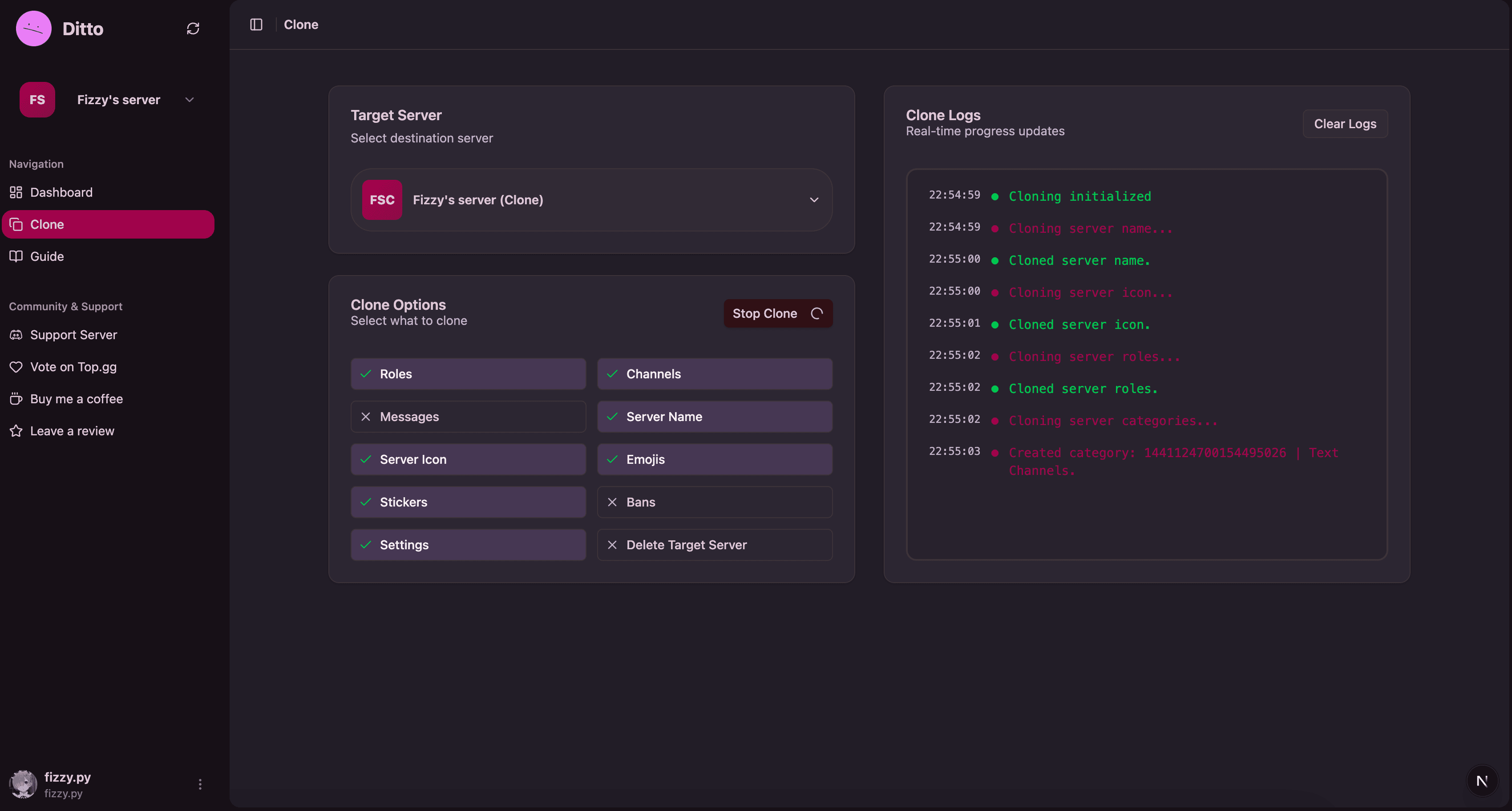
Ditto Web Dashboard will present you with various cloning options. You can toggle these on or off:
- Clone Discord Channels: Copy all Discord text and voice channels
- Clone Discord Categories: Copy Discord channel categories and server organization
- Clone Discord Roles: Copy all Discord server roles and their permissions
- Clone Discord Messages: Copy recent messages from Discord channels
- Clone Permissions: Copy Discord channel-specific permission overwrites
- Clone Emojis: Copy all custom Discord emojis to the target server
- Clone Stickers: Copy all custom Discord stickers to the target server
- Clone Server Icon: Copy the Discord server's profile picture/icon
- Clone Server Banner: Copy the Discord server's banner image
Select the options you want. Most users will want all options including emojis and stickers.
Video: Selecting cloning options on the dashboard
Step 6: Confirm and Start Cloning
Before starting the cloning process, review your choices:
- Check the source and target server names
- Verify the selected options
- Click the "Start Cloning" button to begin
Video: Confirming and starting the cloning process
Step 7: Wait for Cloning to Complete
Once started, the dashboard will show a progress bar or status updates:
- Cloning typically takes time depending on server size
- You can keep the dashboard tab open to monitor progress
- You'll see a success message when the process is finished
Video: Monitoring cloning progress on the dashboard
What Gets Cloned?
Ditto Bot can clone the following elements from your Discord server:
- Text Channels: Discord text channel names, topics, slowmode settings, and NSFW flags
- Voice Channels: Discord voice channel names, user limits, and bitrate settings
- Categories: Discord server channel organization and structure
- Roles: Discord role names, colors, permissions, and role hierarchy
- Permissions: Channel-specific Discord permission overwrites
- Custom Emojis: All Discord server emojis, including animated ones
- Custom Stickers: All Discord server stickers and sticker packs
- Server Icon: Your Discord server's profile picture/avatar
- Server Banner: The banner image of your Discord server (if available)
- Messages: Clone all messages from your Discord channels
What Doesn't Get Cloned?
Due to Discord limitations, these items cannot be cloned:
- Server Members: Users must join the new server manually
- Server Boosts: Nitro boosts and boost perks
- Bots: Other bots must be re-invited manually
- Webhooks: Webhook configurations (for security reasons)
- Invites: Server invitation links
Troubleshooting Common Issues
"You must be the server owner" Error
- Ensure you own both the source and target servers
- Administrator permissions are not enough - you must be the actual owner
- Check server ownership in Server Settings → Overview
"Please vote for the bot" Error
- Make sure you voted on Top.gg within the last 12 hours
- Wait 10-15 seconds after voting before trying again
- Try voting again if the error persists
"Missing Permissions" Error
- Ensure Ditto Bot has Administrator permissions in both servers
- Check that the bot's role is high enough in the role hierarchy
- Re-invite the bot with proper permissions if needed
Tips for Successful Cloning
- Use a fresh target server: Start with an empty server for best results
- Clean up first: Remove unused channels/roles from source server before cloning
- Test with small servers: Try cloning a small server first to get familiar with the process
- Be patient: Large servers take longer to clone - don't interrupt the process
- Have backups: Keep important information backed up separately
Conclusion
Using Ditto Web Dashboard to clone your Discord server is a visual and user-friendly way to manage your servers. Remember to ensure you have the proper permissions, vote on Top.gg, and be patient during the cloning process.
If you encounter any issues or need help, don't hesitate to join our support server where our community and developers can assist you with any questions about using Ditto Bot.